

Automatic Speed Limit Alerts
See your GPS speed alongside a road limit and set up a warning with PRO. Use automatic lookup with internet or select a limit manually. Check the signs and conditions around you.

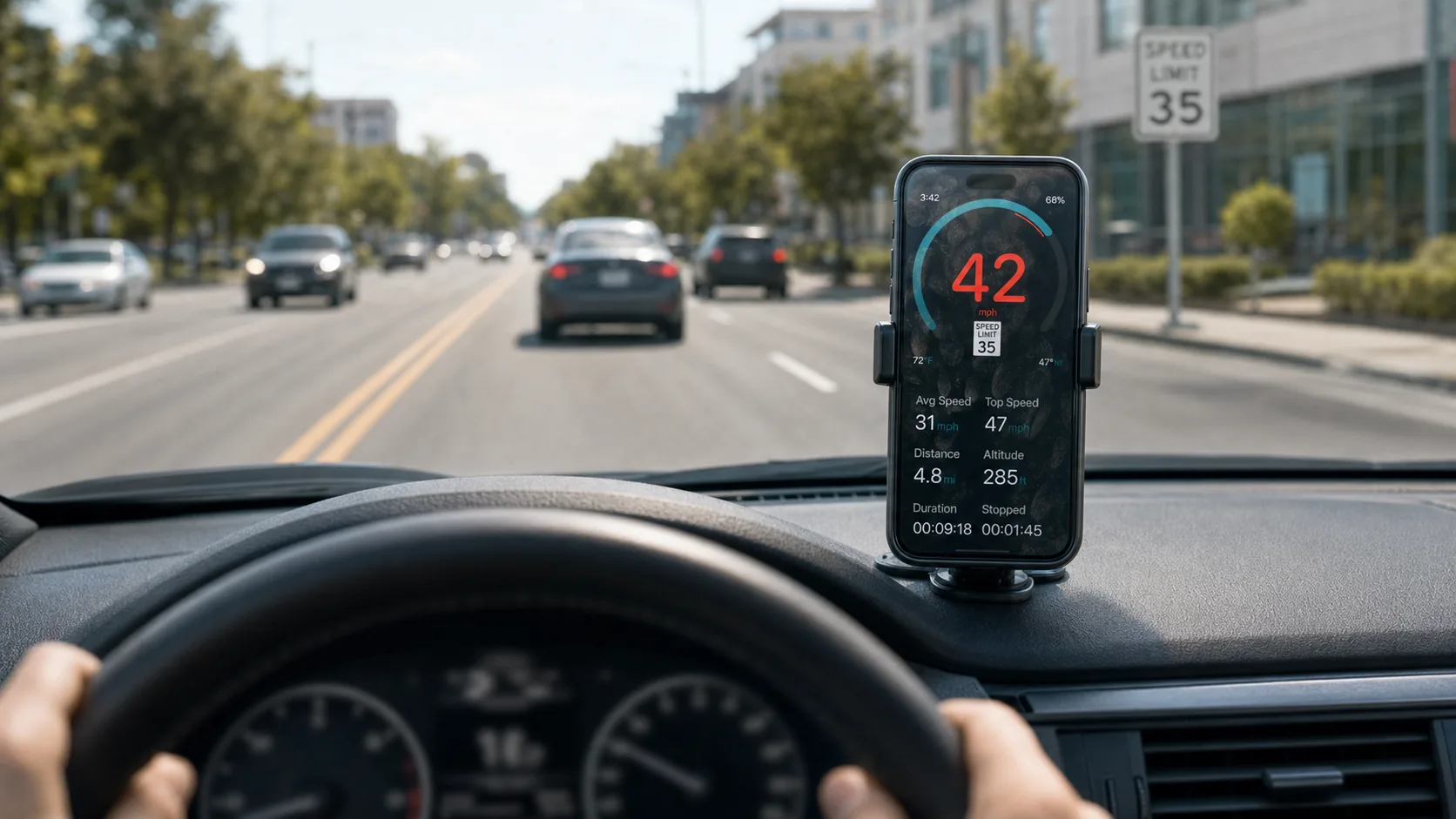
Three values to keep separate
Your speed, the displayed limit and the warning threshold answer different questions. An alert helps you notice a reading; it does not control the vehicle.
Your GPS speed
An estimate of how fast the phone is moving. It needs location permission and a usable reading, and can lag or become unavailable.
The displayed limit
A value from automatic road information or a limit you select. Automatic data may be missing, outdated or associated with the wrong road.
The warning threshold
The displayed limit plus your configured offset. This changes when the app warns you; it does not change the road limit or allow you to exceed it.
Choose how to display the limit and receive warnings
Speed-limit display, controls and alerts require PRO. Basic GPS speed tracking remains free.
Automatic road information
Use location and online road data to obtain a limit. Availability and correctness vary by road; a displayed number is not a guarantee of the current restriction.
Manual selection and fallback
Select a limit yourself when needed. If automatic data is unavailable, the app may retain the last value or use your preset, depending on the fallback setting. Check which value you are using.
Visual warning
The display changes when your speed exceeds the configured warning threshold, drawing attention to the reading.
Warning sound and vibration
Choose a warning sound, or mute sound and vibration together. Check the result on your phone while parked.
HUD display
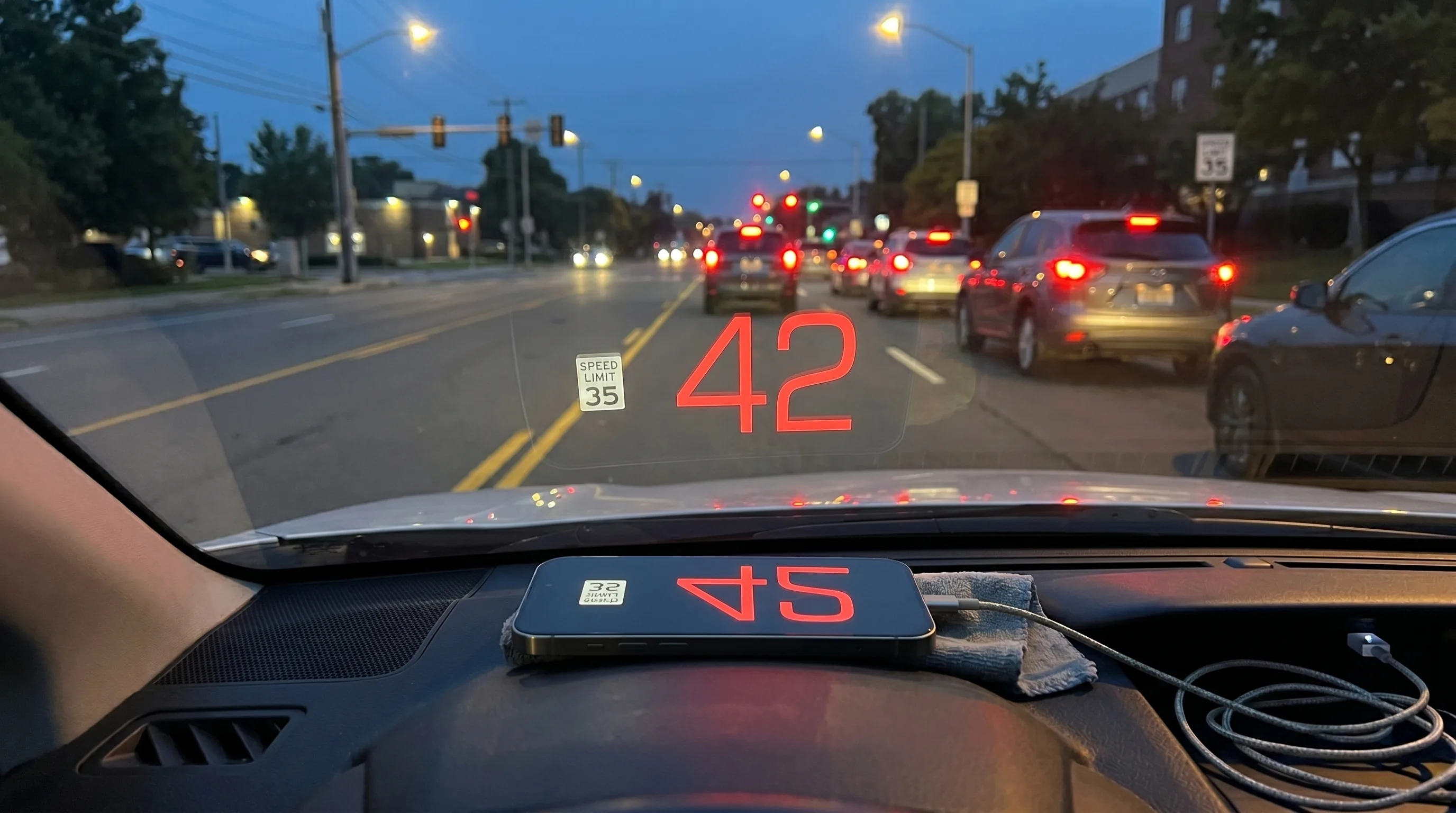
Speed-limit warnings are available in the windshield HUD display. Visibility depends on the screen, glass and lighting. Set it up while parked.
Picture-in-Picture
Show the speed and limit in the app’s Picture-in-Picture window with PRO. Start the feature before switching apps; it does not add road-limit data to another app.
When to double-check the displayed limit
Unfamiliar roads and junctions
- Location or map matching can select a nearby road.
- A default or retained value may differ from the signs on your road.
School zones, roadworks and variable signs
- A restriction can depend on time, vehicle type or temporary conditions.
- Do not assume the displayed value includes every active restriction.
Weak signal or lost internet
- A retained limit does not prove a fresh road lookup succeeded.
- Missing or delayed GPS readings also affect warnings. Follow the road signs and conditions.
Set up alerts before your journey
Open the app and check access
Download GPS Speedometer, allow location access and check that you have a usable speed reading. Speed-limit features require PRO.

Choose automatic or manual limits
Open the app’s speed-limit settings and enable the feature. Choose automatic road information with internet, or select a manual limit. Review the fallback setting.
Review the warning settings
Choose the offset and warning sound. Check the displayed units and audio output while parked. An offset is a notification preference, not an enforcement allowance.
Prepare the display
Position the phone securely where its use is permitted. Set up HUD or Picture-in-Picture if wanted, then leave the controls alone while driving. Continue checking road signs.
Speed-limit questions
Does PRO include both automatic and manual limits?
Yes. Speed-limit display, controls and alerts require PRO. Basic GPS speed tracking and basic trip recording remain free. PRO is available by subscription or one-time purchase; check Apple’s purchase screen for the current price.
How complete is automatic coverage?
Coverage and correctness vary by location and road. The app uses location and road information; this is not a camera reading the signs around you. Missing tags, road matching and conditional restrictions can affect the result. Check the actual signs and conditions.
What works without internet?
Core GPS speed tracking can work without internet with permission and usable reception. Fresh automatic road-limit information needs a connection. A manual or retained limit is not an offline road database, and the app does not offer downloaded road-limit packs.
What does the offset change?
The offset adjusts the warning threshold relative to the displayed limit. It does not change the applicable limit or establish a safe or permitted excess speed. GPS updates and warning timing can also be delayed.
What should I do if the displayed limit looks wrong?
Follow the road signs and conditions. When parked, check automatic versus manual mode and the fallback setting. A last-known or preset value may still be displayed when a fresh lookup is unavailable; do not treat it as confirmation of the current limit.
Will it keep working when I switch apps?
GPS can continue while recording a trip or using Picture-in-Picture. Picture-in-Picture requires PRO. Background use still depends on permission, usable location readings and device conditions; automatic road information also needs internet.
Are speed-limit and speed-camera alerts the same?
No. Speed-limit warnings compare your speed with a displayed limit and offset. Speed-camera alerts are a separate PRO feature using camera-location data, with their own coverage and regional conditions.
Explore the related features
Speed-camera alerts
Understand the separate camera-location feature and its conditions.
HUD speedometer guide
Prepare the windshield display and understand visibility limits.
Picture-in-Picture speedometer
Set up the optional PRO window before switching apps.
Change speed units
Check the units used by your speed display.
Add speed-limit information to your GPS display
Start with free GPS speed tracking. Choose PRO if you want speed-limit display, settings and alerts.

Automatic road information needs internet. Coverage varies; check road signs.