

Picture in Picture Speedometer
Picture-in-Picture requires PRO and keeps a floating speed display above other apps while PiP is active and location data is available.

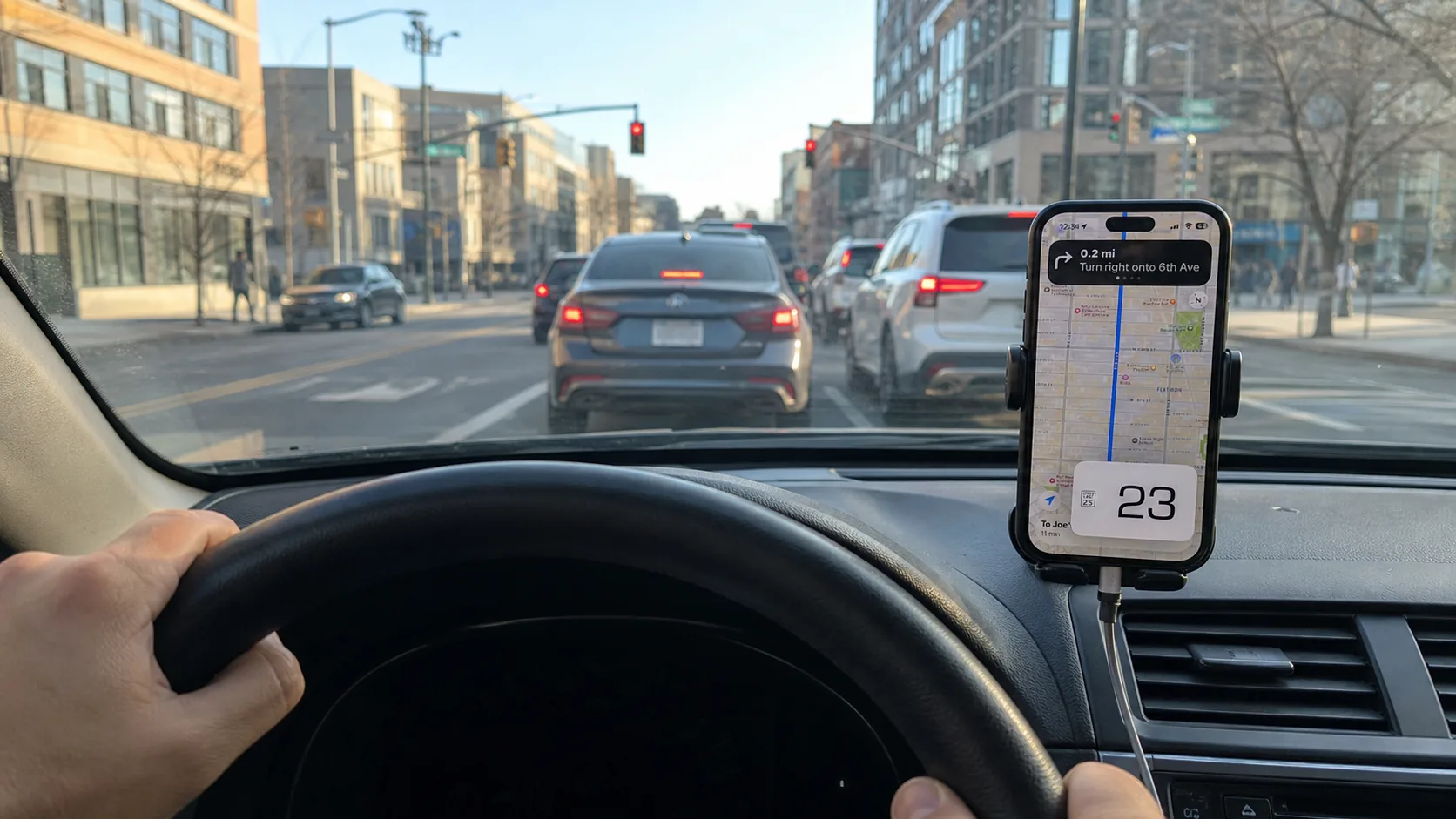
Floating speed display with PRO
With PRO, GPS Speedometer MPH Tracker can keep a floating speed reading visible while you use other apps. It needs an active PiP session and usable location data.
Note: PiP runs in the native iPhone/iPad app on a device that supports it. Check the App Store for the released version’s device and OS requirements.
What is Picture in Picture Mode?
Picture in Picture (PiP) is a resizable speed window in the native iPhone/iPad app. It requires PRO, a device that supports PiP and usable location data. It is separate from the browser speedometer and does not add a native CarPlay display. Check the App Store for the released version’s device and OS requirements.
What you can do
- Keep a supplementary speed reading alongside your preferred navigation app
- Position the window before setting off
- View GPS speed without internet when usable location data is available
- Let a passenger manage the phone, or make changes while parked
Two ways to view your speed
Main app display
Open GPS Speedometer to view its main speed display. Make app changes while parked or let a passenger handle them.
PiP with PRO
Keep a floating speed reading over other apps while the PiP session is active and usable location data is available.
How to Use Picture in Picture Mode
Prepare while parked
Open GPS Speedometer MPH Tracker, allow location access and wait for a usable speed reading. Check that PRO is unlocked before starting PiP.
Open the panel, then start PiP
Tap the overlapping-rectangles PiP button to open the panel. Then tap “Start Picture in Picture”. Opening the panel alone does not start the floating window.
Size and position the window
After the PiP window appears, pinch to resize it and drag it to another corner. Choose a position that leaves useful navigation information visible.
Open your navigation app
Open your preferred navigation app before the trip. PiP needs an active session and usable location data. Make changes while parked or let a passenger manage the phone.
Ways to use Picture in Picture
Navigation with a speed reference
Set up PiP alongside your preferred navigation app before moving. Use the reading as supplementary information; follow road signs and traffic conditions.
Delivery route preparation
Check the next stop while parked, then prepare the PiP window and your navigation app for the next part of the route.
Work trip preparation
Plan the route and arrange the display before setting off. PiP does not certify speed compliance or replace required vehicle instruments.
Passenger-managed app changes
A passenger can manage other apps while PiP is active. The reading remains subject to session interruptions and usable location data.
Trip coordination at a stop
Park before checking messages or changing plans, or let a passenger coordinate the trip. PiP does not make phone interaction safe while driving.
Trips with limited internet
Core GPS speed does not require internet, but needs usable location data. Automatic road limits require internet and may be missing or incorrect.
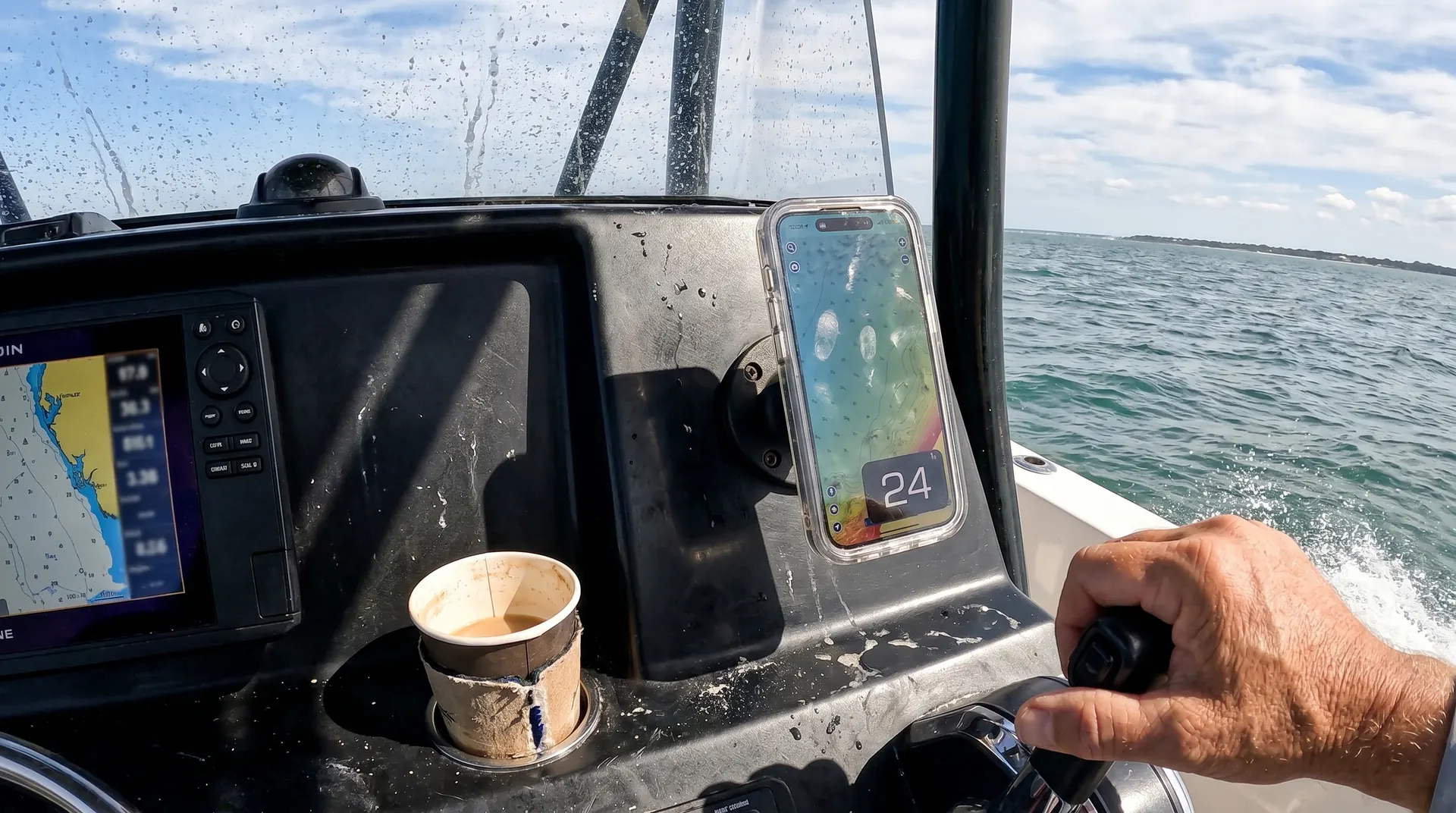
PiP controls and conditions
Resize and move
Pinch to resize the window and drag it between corners. Arrange it while parked.
Speed during an active session
The speed reading can continue with PiP active and usable location data. Updates can be interrupted.
System controls
Tap the window to reveal controls and use Close to end PiP. Reopen GPS Speedometer for the full app.
Device support
Use the native iPhone/iPad app on a device with PiP support. The App Store lists the released version’s device and OS requirements.
Screen space you can adjust
The floating window covers part of the other app. Choose its size and corner before moving.
Available speed-limit information
PiP can show an available limit. Automatic road limits need internet and can be missing or wrong; follow road signs.
Choose how to view your speed
| What to consider | Our PiP with PRO | Switching apps | Split-screen arrangements |
|---|---|---|---|
| Where speed appears | Floating window during an active PiP session | Main speed display when you open the app | In a selected pane, where supported |
| Screen space | The window covers part of the other app | View the app currently in the foreground | Apps share the available screen area |
| Setup | Unlock PRO, open the panel and tap “Start Picture in Picture” | Open the needed app while parked | Check the device’s multitasking options |
| Interruptions | The user, app or system can stop PiP | Switching changes the app in the foreground | Behavior depends on the apps and device |
| Road-limit information | Automatic limits need internet and may be missing or wrong | Depends on the selected app and its data | Depends on the selected app and its data |
| Device and app requirements | PRO, PiP support, an active session and usable location data | Check each app’s requirements | Check device, OS and app support |
Picture in Picture FAQ
Battery use varies with the device, battery health, screen brightness, signal and enabled features. No fixed hourly drain or runtime has been established for the app. For long trips, plan a suitable charger or power bank.
Pinch to resize the PiP window and drag it to another corner. Tap it to reveal system controls; Close ends PiP. Make these adjustments while parked or let a passenger handle them.
Check that PRO is unlocked and your device supports PiP. The speed display needs an active PiP session and usable location data. Another active PiP session, such as a FaceTime call in PiP, can prevent it from starting or interrupt its display. The app or system can also end the session; try starting PiP again while parked.
GPS can continue in the background while recording a trip or using Picture-in-Picture. Picture-in-Picture requires PRO. GPS provides an estimate of speed over ground, independent of wheel size. Signal quality, obstructions, low speed and processing can affect the reading. A fixed percentage error or greater accuracy than another instrument is not guaranteed.
No. GPS Speedometer creates the floating speed window, and iOS displays it over the app you are using. The app underneath does not need its own PiP feature or an integration with GPS Speedometer.
Add a floating speed display with PRO
Picture-in-Picture requires PRO and keeps a floating speed display above other apps while PiP is active and location data is available.

Free download with an optional PRO subscription or one-time purchase.