

HUD Speedometer Guide
GPS Speedometer turns an iPhone into a heads-up display by mirroring your speed onto the windshield. It reads GPS ground speed in MPH, km/h, or knots, works offline, and needs no dashboard hardware. The app has run on iPhone since 2014 and is free to download, with HUD brightness raised for night driving.
Transform your iPhone into a professional heads-up display speedometer. Project your speed safely onto your windshield for better driving awareness.


See HUD Mode in Action
A windshield-reflection demo recorded from the app — what HUD mode looks like in motion.
What is HUD (Heads-Up Display)?
HUD technology projects important information directly onto your windshield, allowing you to keep your eyes on the road while monitoring your speed. Originally developed for aircraft, HUD systems are now available in premium vehicles and through smartphone apps.
Eyes on Road
No need to look down at dashboard
Perfect for Night
Especially useful in low-light conditions
Instant Reading
Speed visible in peripheral vision
How to Set Up HUD Mode
Download GPS Speedometer MPH Tracker
Free to download, with no ads. PRO is available through a subscription or a one-time purchase; both unlock the same PRO features. The price depends on your region and current offer; check Apple’s purchase screen. GPS speed in MPH, km/h and knots; Live maximum speed, average speed and distance; Trip recording, saving and basic saved-trip summaries; Basic windshield HUD; Live altitude and G-force display; Basic themes and no ads

Enable Location Services
Grant location permission when prompted. This is required for GPS speed tracking to work.
Activate HUD Mode
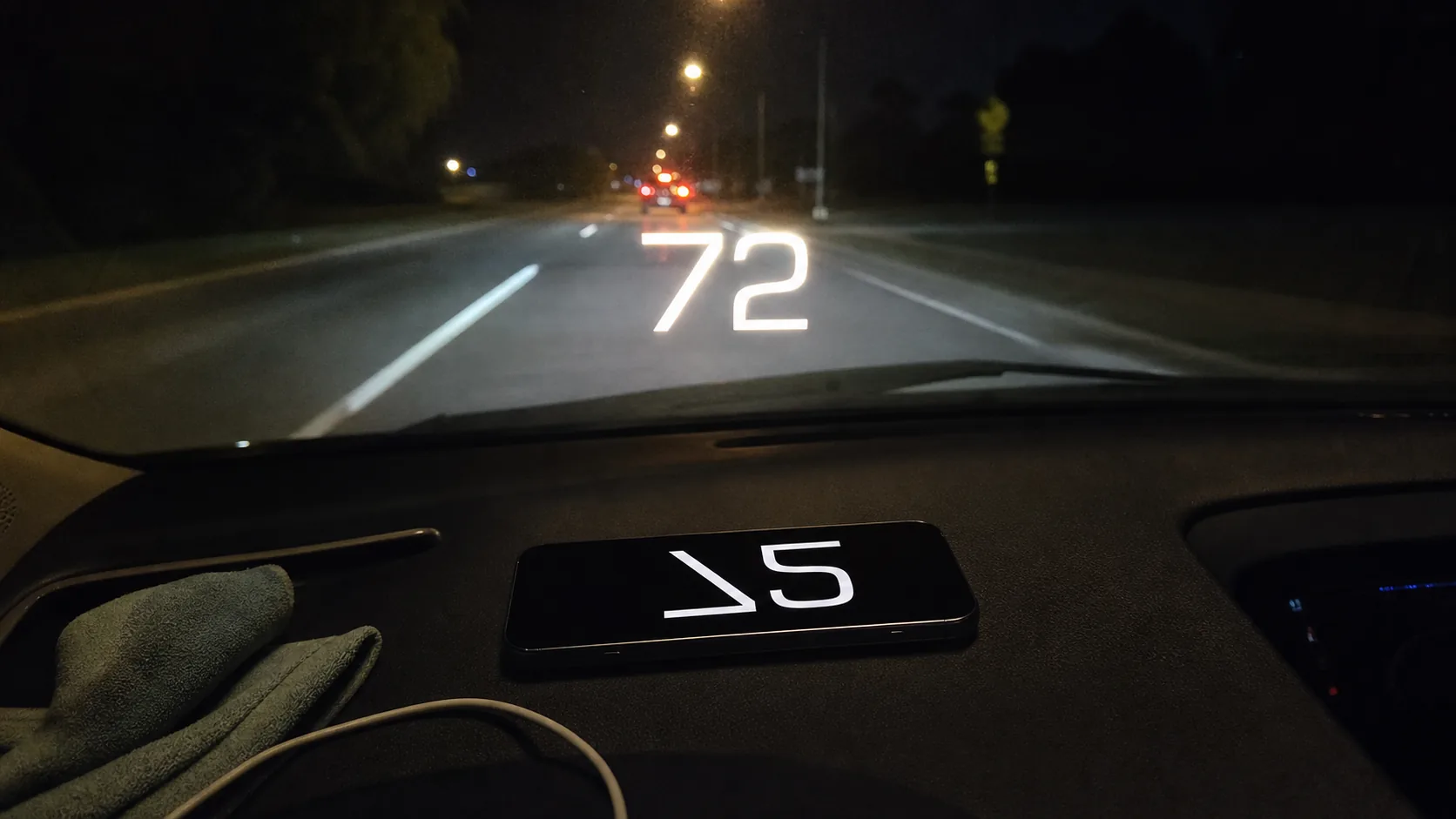
Tap the "HUD" button to switch to heads-up display mode. The screen will flip horizontally for reflection.
Position Your iPhone
Place your iPhone on the dashboard with the screen facing the windshield. The reflected image will appear on the glass in front of you.
Adjust Brightness & Settings
Fine-tune the brightness and color settings for optimal visibility. Darker colors work better during night driving.
HUD Best Practices
Do
- Use primarily during night driving when reflection is clearest
- Position phone securely to prevent movement while driving
- Adjust brightness to minimize distraction
- Clean your windshield for best reflection quality
- Test setup while parked before driving
Don't
- Block your view of the road or important indicators
- Use maximum brightness as it can be distracting
- Rely solely on HUD for speed monitoring
- Leave phone unsecured on dashboard
- Adjust settings while driving
Troubleshooting HUD Display
- Clean your windshield inside and outside
- Increase screen brightness slightly
- Wait for darker conditions (dusk/night)
- Adjust phone angle and position
- This is normal - the app automatically flips the display
- The reflection on windshield will appear correctly
- Don't flip your phone orientation
- Check location services are enabled
- Ensure you're moving fast enough (walking speed may not register)
- Wait for better GPS signal (move away from buildings)
- Restart the app if needed
Why GPS Speedometer MPH Tracker for HUD?
Unique Features
- True HUD with automatic display flip
- Customizable colors and brightness
- Basic HUD is free. PRO adds enhanced HUD options and road-speed-limit features; automatic road-limit data needs internet.
- Core GPS speed tracking and trip recording work without internet, with location permission and a usable GPS signal. Automatic road-speed-limit data and weather need internet. Maps and other connected features may be unavailable offline.
- No ads to distract while driving
Proven Track Record
- ★ 4.7 on the U.S. App Store. Over 139,000 ratings worldwide
- 6.3M+ downloads
- Trusted since 2014
- Regular updates and improvements
- Privacy-focused (EU company)
HUD Speedometer FAQ
HUD speedometers are generally legal as they help keep eyes on the road. However, ensure the display doesn't obstruct your view or violate local laws about device placement.
HUD reflection is most visible during dusk, night, or overcast conditions. In bright sunlight, the reflection may be too faint to see clearly on the windshield.
Battery use varies with the device, battery health, screen brightness, signal and enabled features. No fixed hourly drain or runtime has been established for the app. For long trips, plan a suitable charger or power bank.
Picture-in-Picture requires PRO and keeps a floating speed display above other apps while PiP is active and location data is available.
Ready to Experience HUD Speedometer?
6.3M+ downloads

Free download • HUD included • No setup required