
How to See Your Current Speed While Using Apple Maps
Learn the difference between Apple Maps' posted speed limit and your current speed, plus how to add a floating GPS speed display on iPhone.
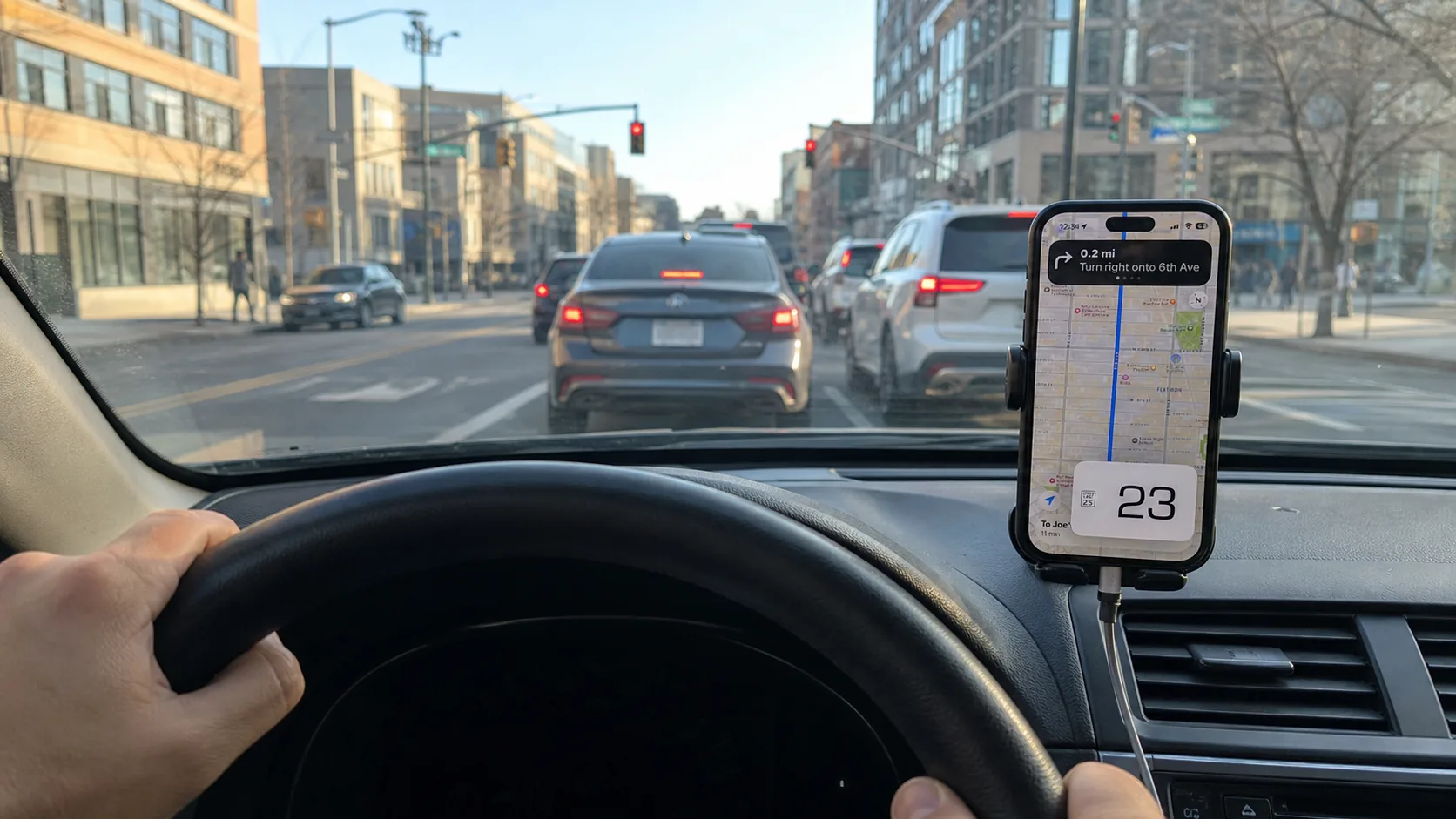
Table of Contents
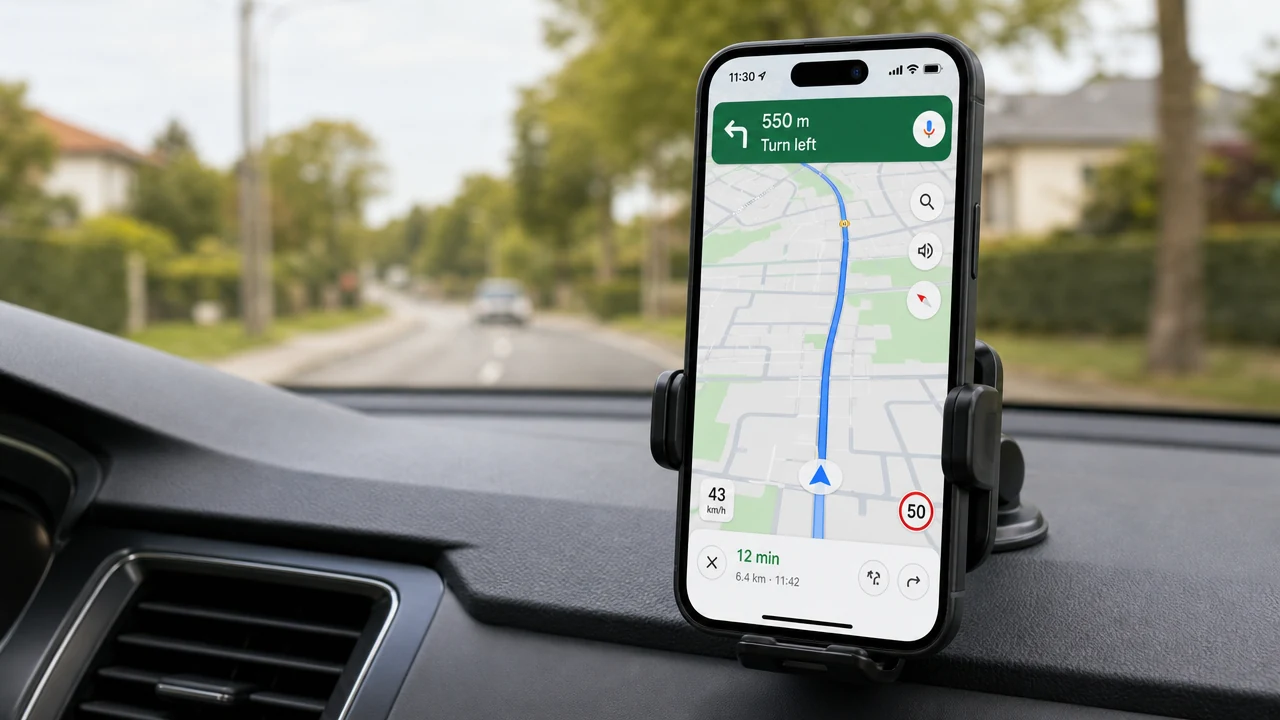
Apple Maps can show the posted speed limit during driving directions where that information is available. A speed limit is the rule for the road; your current speed is how fast the iPhone is moving now. They answer different questions.
Apple’s current iPhone guide documents a Speed Limit switch under Settings → Apps → Maps → Driving. That guide section does not document a current-speed readout. This is a statement about Apple’s published instructions for iOS 26, not a claim that every Maps version, region or screen behaves identically.
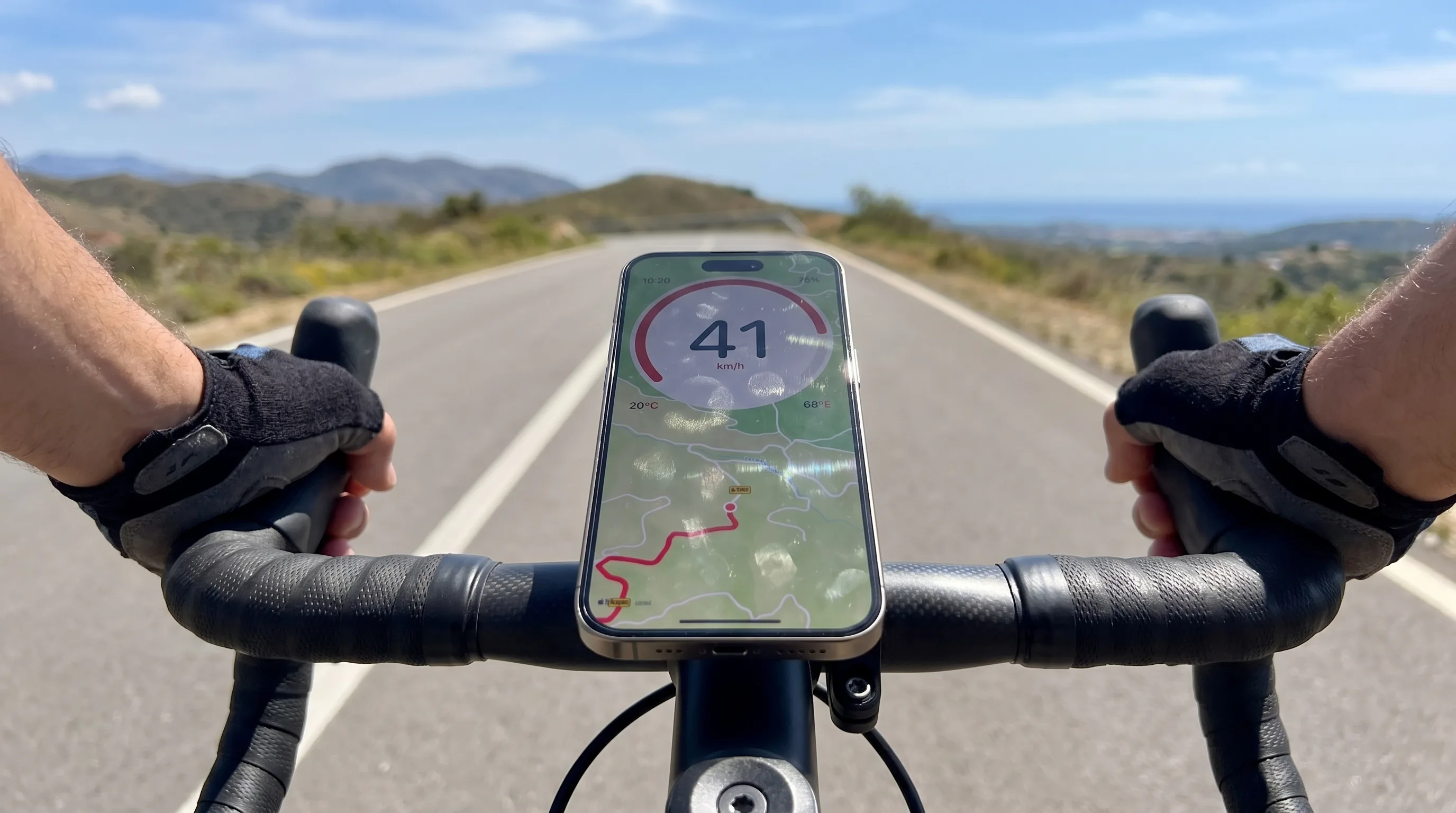
If you want your current GPS speed while keeping Apple Maps visible, one option is a separate speedometer in an iPhone Picture in Picture window.
Three useful displays
| What you need | Display to use | What it tells you |
|---|---|---|
| The limit for the road | Apple Maps Speed Limit | The posted road limit when Maps has that data |
| Your speed beside navigation | A GPS speedometer in Picture in Picture | An estimate of the iPhone’s current ground speed |
| A quick speed check without navigation | A foreground app or browser speedometer | Current GPS speed while that screen is open |
Do not treat a displayed road limit as your measured speed. Do not treat a GPS reading as permission to exceed signs or local rules. Road data can also be unavailable or wrong, so posted signs remain the reference.
Turn on Apple Maps’ speed-limit display
For iOS 26, Apple’s driving-directions guide gives this path:
- Open Settings on the iPhone.
- Tap Apps, then Maps.
- Under Directions, tap Driving.
- Turn Speed Limit on.
Availability can vary by country or region. This control is for the limit display; it does not turn the limit into a measurement of your vehicle’s current speed.
Put current speed beside Apple Maps with Picture in Picture
We make GPS Speedometer MPH Tracker. Its Picture in Picture mode is a PRO feature in the native iPhone and iPad app. It creates its own floating speed window; Apple Maps does not need an integration with the speedometer app.
Set it up before moving:
- Open GPS Speedometer MPH Tracker, allow location access and wait for a usable GPS reading.
- Confirm that PRO is unlocked.
- Tap the overlapping-rectangles PiP button to open the panel.
- Tap Start Picture in Picture. Opening the panel alone does not start it.
- Resize and place the floating window, then open Apple Maps and start your route.
Apple says turn-by-turn directions continue if you open another app during navigation. The floating speed window still requires an active PiP session, a device that supports it and usable location data. The app or iOS can end the session, so check the display before setting off.
The GPS speed reading itself can work without internet when the phone has usable location data. Automatic road-speed-limit information in the speedometer app requires PRO and an internet connection, and a limit may still be missing or incorrect. Apple Maps has its own connectivity and offline-map requirements.
For the full controls and troubleshooting, use the Picture in Picture speedometer guide.
Picture in Picture is on the iPhone screen
This method places a floating window over the iPhone app. It does not add a native GPS Speedometer interface to CarPlay, and it does not place that floating window on the vehicle’s CarPlay display.
If you use CarPlay, follow Apple’s CarPlay and Maps controls for the vehicle screen. Use the phone only when safely mounted and permitted, and make all changes while parked or ask a passenger to handle them.
A free foreground option
If you only need a quick current-speed check, the online speedometer can show GPS speed in the browser after you grant location access. It must stay in the foreground and it does not create the native app’s PiP window.
The native app’s core speedometer is also free and has no ads in the current version. PiP remains optional PRO functionality.
Frequently asked questions
Does Apple Maps show my current speed?
Apple’s iOS 26 driving guide documents a Speed Limit display setting, but it does not document a current-speed setting in that section. Check the controls available on your device and in your region.
Is the speed limit the same as current speed?
No. The speed limit is a road rule from map data or signs. Current speed is an estimate derived from movement and location data. The two numbers may appear close while you drive, but they represent different things.
Does Apple Maps need to support the speedometer’s PiP mode?
No. GPS Speedometer creates the PiP window and iOS places it over the foreground app. Apple Maps does not need a plug-in or direct integration.
Can I use this on CarPlay?
The described PiP window appears on the iPhone or iPad screen. It is not a native CarPlay speedometer interface.
Sources
- Apple: Get driving directions in Maps on iPhone, checked 10 September 2026 for the iOS 26 Speed Limit setting and background directions behavior.
- Picture in Picture speedometer for the reviewed app setup, PRO requirement and operating limits.