
Google Maps Speedometer on iPhone: Turn It On and Understand the Reading
Turn on the Google Maps speedometer on iPhone. Understand current speed vs speed limits and choose between navigation, trip recording and a browser check.
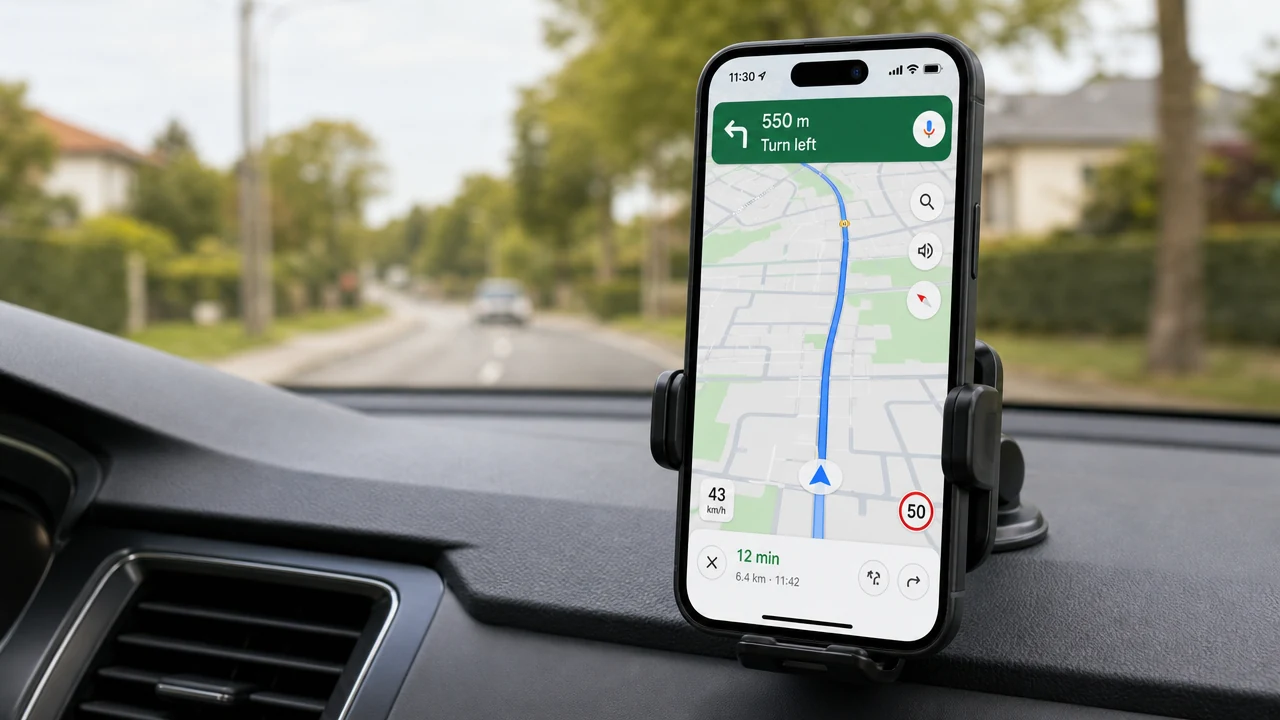
Table of Contents
Yes. Google Maps can show a speedometer during navigation on iPhone. The setting is separate from the speed-limit display, and Google labels the speedometer informational.
How to turn on the Google Maps speedometer on iPhone
Google’s current path is:
- Open the Google Maps app.
- Tap your profile picture or initial, then choose Settings.
- Open Navigation.
- Find Show speedometer and turn it on.
See Google’s official iPhone and iPad instructions for the current steps.
What the speedometer and speed limit mean
The speedometer is an estimate of how fast you are driving. The speed limit is a separate mapped reference. Where that feature is available, the indicator can change color above the available limit.
An indicator changing color does not make the display a legal authority. Follow road signs and local traffic rules. Google also warns that external factors can make its reading differ from actual speed, so use the vehicle’s speedometer to confirm it.
If the setting is missing, check the current Google Help instructions linked above.
Which speed display fits the task?
Google Maps is useful when the speed display belongs alongside navigation. Other choices answer different questions, and downloading our app is not required to turn on Google’s setting.
| Choose | Use it for |
|---|---|
| Google Maps speedometer | A current-speed display alongside navigation, with a separate speed-limit reference where available. |
| GPS Speedometer app | Free iPhone speed tracking, trip recording and basic maximum-speed, average-speed and distance summaries. PRO adds GPX export and Picture in Picture. |
| Free browser speedometer | A foreground speed check without installing an app, after location permission and usable device location data. |
The browser tool does not enable or change Google Maps, and none of these displays replaces posted road signs or the vehicle’s speedometer. Keep the distinction clear: current speed is a measurement task, while a speed limit is location and map information.
Frequently asked questions
Which speed display should I use while driving?
Use Google Maps when you want a speed display alongside navigation. Use the native app when you also need iPhone trip recording and basic summaries, or use the browser tool for a foreground check without installing an app. Their available features and readings have different conditions; follow posted signs and use the vehicle’s speedometer to confirm your speed.
Can the browser speedometer stay visible over Google Maps?
The browser speedometer needs its own page to remain in the foreground. To keep a speed window over another app on iPhone, the native app has an optional PRO Picture in Picture mode. That is a separate feature from the browser tool and Google’s own setting.
Can I record a trip without using turn-by-turn navigation?
Yes. The native GPS Speedometer app can record and save a trip without a navigation route. Basic maximum-speed, average-speed and distance summaries are free; detailed analysis and GPX export require PRO. The browser tool provides a foreground reading, without the native app’s saved-trip workflow.