

How do I record a trip and export it as a GPX file?
GPS Speedometer records your full route — position, speed, and altitude, sample by sample — while you drive, ride, or walk, and it works offline. Recording trips is free; exporting a saved trip as a standard GPX file for Strava, Komoot, or RideWithGPS is a PRO feature.
Record and export, step by step
- 1
Start a trip recording
Open GPS Speedometer, wait for the GPS signal to lock, and start recording a trip so each position, speed, and altitude sample is logged.
- 2
Travel your route
Keep the app running while you drive, ride, or walk. It logs a second-by-second history — timestamp, position, speed, and altitude — and needs no internet connection.
- 3
Stop the recording
When you finish, stop the trip. The complete route is saved to your trip history, where you can review the full log in the app.
- 4
Export as GPX (PRO)
With PRO, export the saved trip as a standard .gpx file and open or import it in Strava, Komoot, RideWithGPS, or any tool that reads GPX.
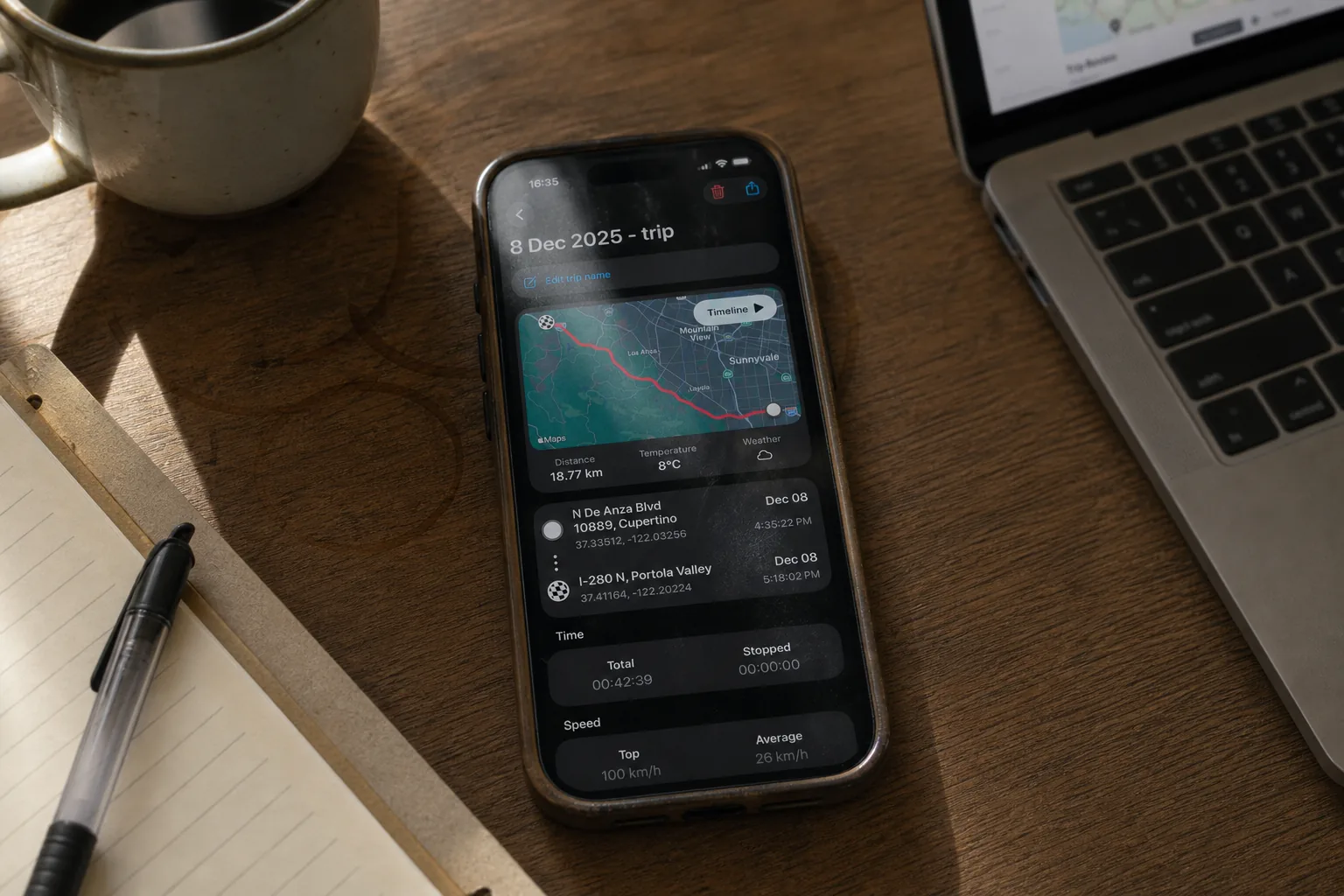
What GPX is, and where the file goes
GPX (GPS Exchange Format) is the standard file type for saved routes. Because it is an open format, a trip you export from GPS Speedometer opens in Strava, Komoot, RideWithGPS, Garmin tools, Google Earth, and most mapping software. Each file holds the track points the app recorded — position and elevation over time — so you can map the route, review the climb, or share it with a training group. If you just want to look at the route without signing into anything, drop the file into a free online GPX viewer — it is made by the same team, runs entirely in your browser, and never uploads the file.
The full list of what the app captures for each trip — max speed, average speed, distance, altitude, climb, and more — is in the GPS speed tracker reference, and the trip-stats guide explains what each number means.
Free to record, PRO to export
It is worth being clear about the split: recording trips and reviewing them in the app are free, and so is working offline. GPX export and trip sharing are PRO. That means anyone can log a ride and see the numbers; PRO is what turns a saved trip into a portable file for other apps. The free vs PRO breakdown lists exactly what each tier includes.
Cyclists and runners are the most common users of GPX export — see the cycling speedometer page for how it fits a ride workflow.
GPX export FAQ
Is recording a trip free?
Yes. Trip tracking and recording are part of the free core of GPS Speedometer — the app logs your route, speed, distance, and altitude without payment. Exporting a saved trip as a GPX file is the part that requires PRO.
Does trip recording work without internet?
Yes. Recording relies on GPS, not a data connection, so it keeps logging your route on remote trails, at sea, or anywhere without signal. You can export the GPX later once you are back online, if needed.
What can I do with the GPX file?
A GPX file is a standard route format, so you can import it into Strava, Komoot, RideWithGPS, Garmin tools, or Google Earth to analyse, map, or share the ride. It contains the trip’s track points with position and elevation.
Why can’t I find the export option?
GPX export is a PRO feature. If you do not see it, make sure you have unlocked PRO and that the trip you want has finished recording and been saved. The free version records and reviews trips in-app but does not export them as files.
More help in the guides hub and the full FAQ.
Record every route, export the ones you want
Free trip recording that works offline; GPX export with PRO.


Free download • On iPhone since 2014